
PCAN-Explorer 7: Bus Descriptions Add-in




Explorer 7
PCAN-Explorer 7 is a comprehensive, professional software for working with CAN CC, CAN FD, and CAN XL buses. By connecting to one or more CAN buses, users gain access to a wide range of options for monitoring the CAN traffic, individual messages, or specific data signals. Through manual or periodic message transmission, the bus can be directly influenced, for example, for control purposes or simulations.
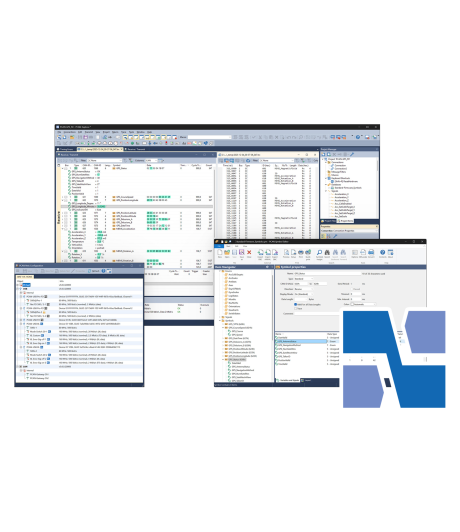
PCAN-Explorer 7 is designed as a modular, project-oriented software platform. At its core, the software is built around a central project structure that bundles bus connections, symbol definitions, scripts, traces, and visualizations into one reusable configuration dashboard. Users assemble a project by selecting customized interfaces, assigning database files, and adding optional add-ins that extend functionality. In this overview, the most important elements of the main workspace are explained.
Supports CAN CC, CAN FD and CAN XL
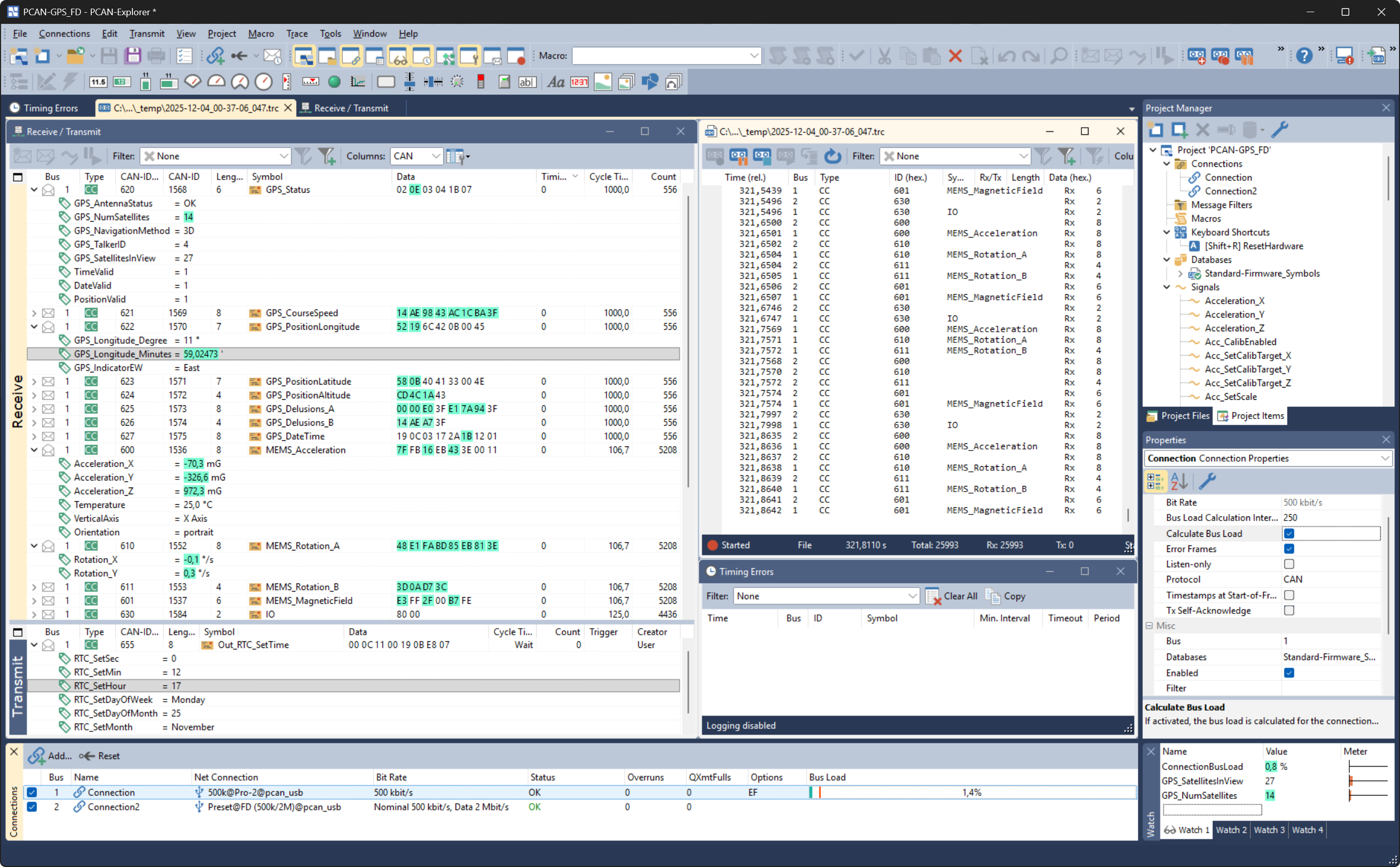
Up to 64 connections can be established to real CAN buses of different types and bit rates, as well as to internal PCAN nets (virtual CAN buses). These connections can be used to link to other software clients, such as those used for simulation. CAN data from the different connections can be aggregated via scripting.
- Connection with up to 64 buses, independent of their CAN specification
- Simultaneous connections with multiple CAN interfaces independent of their hardware type
- Support for the CAN specifications CAN CC (classic CAN 2.0), CAN FD, and CAN XL (ISO 11898-1:2024)
- Support for CAN XL operation modes:
- CAN XL with error signaling
- CAN XL without error signaling
- CAN XL with transceiver mode switch - Bit rate configuration:
- CAN bit rates (nominal) up to 1 Mbit/s
- CAN FD data bit rates up to 8 Mbit/s
- CAN XL data bit rates up to 8 Mbit/s, CAN FD compatible transmission mode
- CAN XL data bit rates up to 20 Mbit/s by using the transceiver mode switch
- Optional use of custom bit rates with automatic calculation of register values - Listen-only mode can be activated for each connection
- Clear overview of connections with their bit rate, status, error counter, and bus load
- Function to execute a hardware reset of the CAN interface
Reception and Transmission
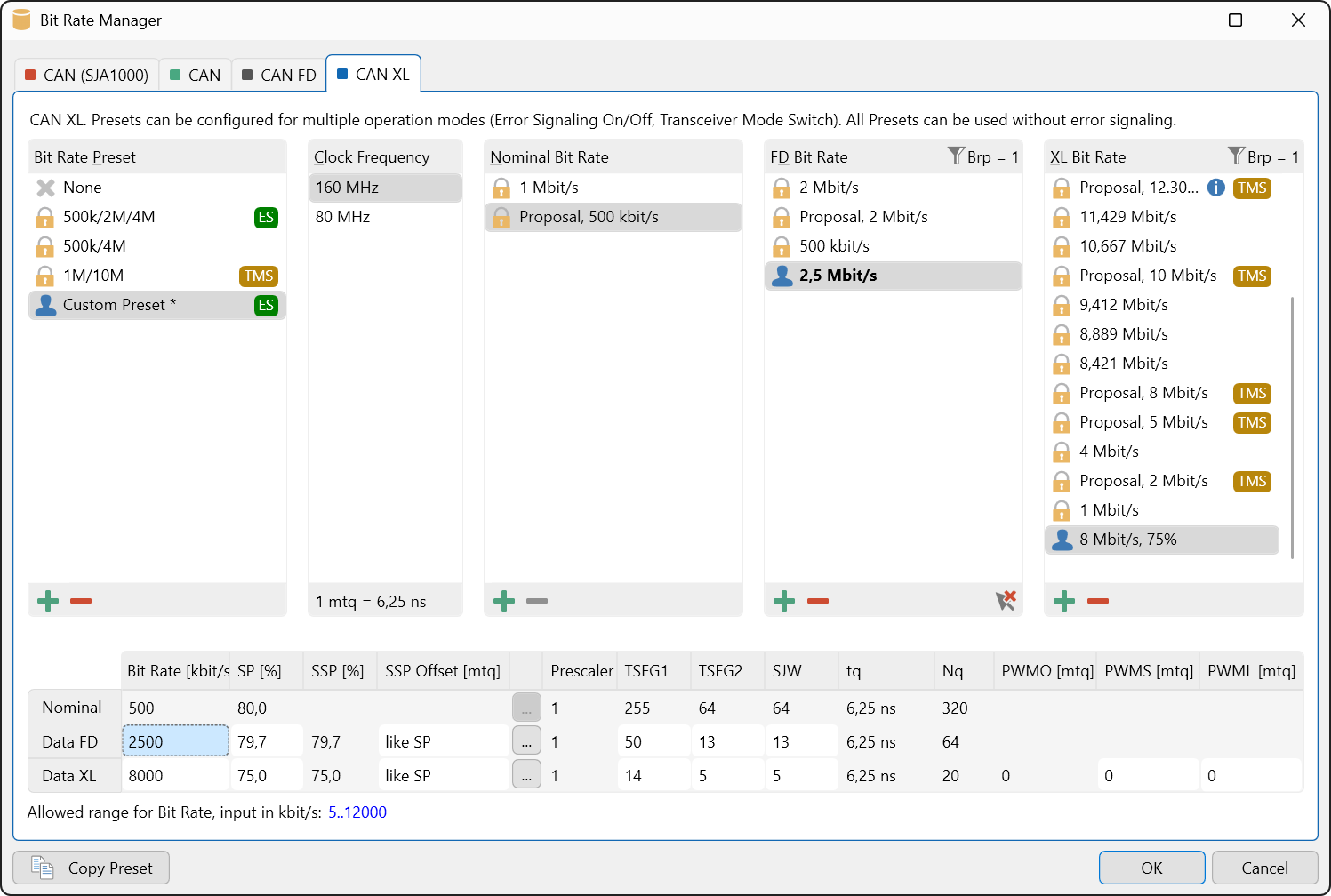
This is the main overview of incoming CAN messages. Additionally, you can set up a list of predefined CAN messages with data for transmission. PCAN-Explorer interprets the data bytes of CAN messages using Symbol files and displays the included signals with their names. Changes to incoming data are highlighted to make it easier to analyze what is happening on the CAN bus.
- Display of CAN traffic in sortable receive and transmit lists with various information like ID, length, data, time-outs, message count, and cycle time
- Separate column configuration for CAN, CAN XL, and J1939 in Receive/Transmit and Trace windows
- Highlighting of data changes on incoming CAN messages in Receive and Watch windows, applies to raw values and symbolic representation
- Error frame indication can be activated for each connection
- Display of connection‘s receive, transmit, and error states
- Message reception with a maximum resolution of 1 µs
- Manual and periodic transmission of messages with a maximum resolution of 1 ms
- Creating CAN XL send messages with selection of an SDT (service data unit type) according to CiA® 611-1, such as tunneling of CAN FD frames
- Transmission of CAN messages in response to remote frames (only with CAN CC)
- Messages can be grouped as transmit lists, stored and loaded as desired, e.g., in order to emulate CAN nodes
Recording
Starting a trace recording opens the window, by default recording all incoming and outgoing CAN messages with time stamps to a file. Besides optional filtering, recently recorded traces or those being loaded from a file can be replayed in one move, up to break points, only in a time range, or step by step.
- Trace function for logging of CAN data traffic, optionally along with errors
- Operation of multiple tracers for different CAN channels at the same time
- Recording directly to files or to RAM (in linear, dynamic, or circular buffer mode)
- Saving of the logged data as readable TRC text files or CSV files
- Conversion of saved recordings to third-party file formats like MDF4 and ASC with the free PEAK-Converter
- Representation of the logged messages with details such as time stamp, type, ID, length, and data bytes
- Representation of the data bytes in hexadecimal, decimal, or ASCII format
- Subsequent examination of the logged data with the help of Symbol files
Playbach
For in-depth analysis, playback can be done step by step or with breakpoints. When replaying a CAN trace file for testing, you can run the full stream or step through messages in meaningful chunks using breakpoints, including single-step playback. Text-based trace files from PEAK tools work directly, and formats like MDF4 and BLF can be imported.
- Playback of CAN data traffic directly from files or from the buffer
- Operation of multiple playbacks to different CAN channels at the same time
- Optional playback with breakpoints or in single-step mode for in-depth analysis
- Playback of trace files with optional loop function
- Playback of a specified section of a recording
- Playback of third-party file formats like BLF and MDF4 by using the free file conversion tool PEAK-Converter
Filtering
Incoming CAN messages as well as recordings can be filtered using various criteria.
- Multiple flexible filters can be assigned to the Receive window or different traces
- Filters can be applied to running traces or subsequently to existing trace files
- Filters are composed of one or more items that are processed in sequence for each incoming message
- Filter types:
- CAN channel
- CAN ID range
- SJA 1000 Code/Mask
- CAN messages interpreted with Symbol files
- Options like: errors, protocol exceptions, and overload frames, RTR frames, events
- J1939-specific filter types: PGN, priority, source address, and destination address
- CAN XL-specific filter types: PID, VCID, SDT, RRS, SEC, AF, and AF mask
Symbolic Representation
A central feature of the program is the symbolic representation of CAN messages. With the help of PEAKSystem‘s Symbol files or compatible thirdparty databases, the program instantly translates the CAN IDs and payload data into a readable and easily understandable format.
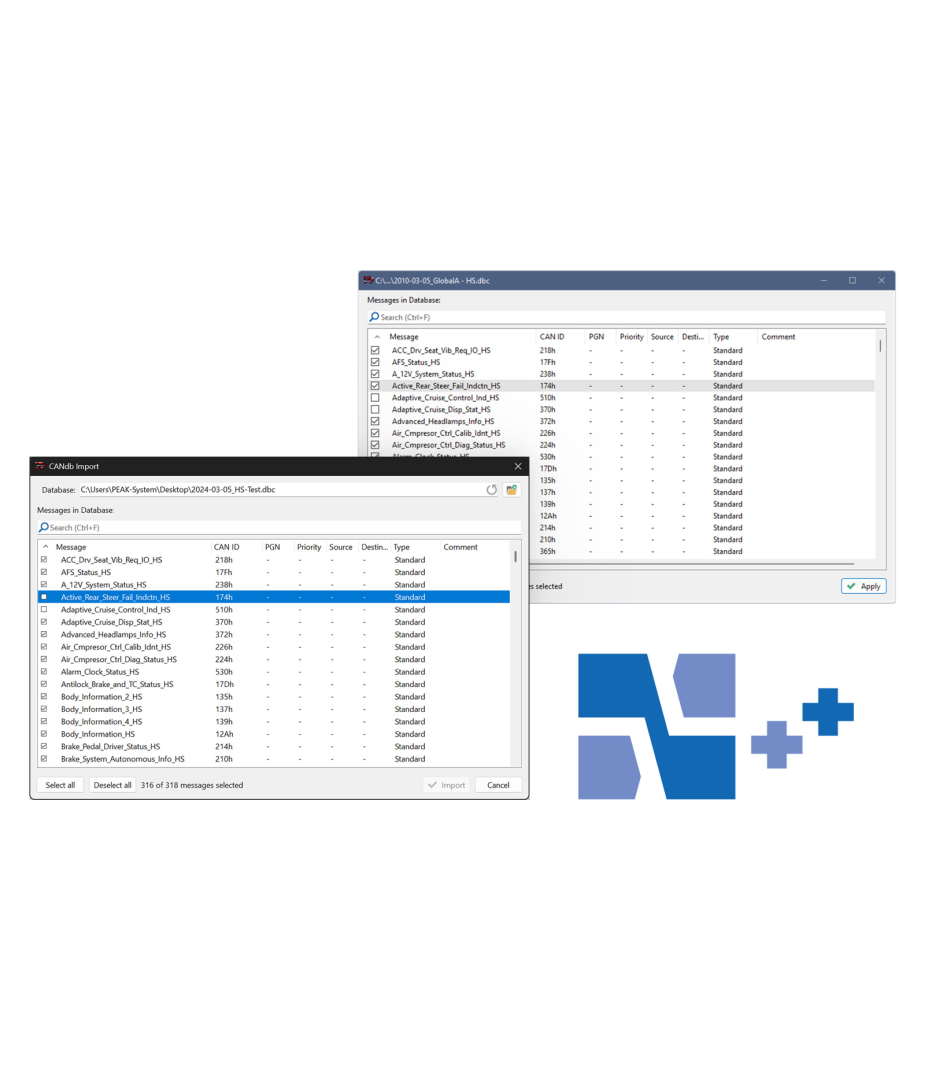
In PCAN-Explorer 7, you can apply additional Symbol files to a connection as needed, including thirdparty databases, supported via the CANdb Import and AUTOSAR XML Import add-ins.
- Clear and readable representation of CAN messages based on the Symbol format from PEAK-System:
- Easy allocation of CAN messages by assigning alphanumeric names to CAN IDs
- Bit-exact division of the data into signals for assigning names, data type, etc. - Signals are used for data presentation and processing by add-ins such as Plotter and Instruments Panel
- User-friendly real-time monitoring of several signals via the Watch window
- Bus load available as a signal for each connection
- Comfortable Symbol file creation with the supplied Windows software PCAN-Symbol Editor or with the integrated text editor
- Application of multiple Symbol files or third-party data description files on a single CAN connection
- Direct application of third-party data description files (.dbc, .arxml) with the Bus Descriptions Add-in
Automation
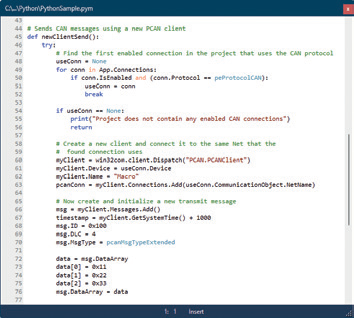
Special requirements as well as the automation of complex processes can be implemented using simple macros, advanced scripts in Python or VBScript, and callback functions. For this, the entire PCAN-Explorer 7 object model is accessible via Python and VBScript.
PCAN-Explorer 7 adds Python scripting alongside VBScript, providing full Object Model access for automation tasks. It includes built-in examples and ships with common modules (e.g., numpy, requests, lxml, pyserial, pywin32) plus standard dependencies, with easy support for adding more.
- Automation of small tasks or complex processes with macros, VBScript, or Python, like:
- Test procedures for the implementation or development of CAN systems
- Send an e-mail if a temperature is exceeded
- Start an action when a particular message is received
- Open an Excel sheet when an event occurs and save the data in individual cells
- Calculate signal values from the data of incoming CAN messages - Creation of macros and scripts with the integrated text editor
- Assignment of function keys to individual macros
- Access with VBScript or Python to almost all program elements via the PCAN-Explorer object model
- Processing of Python scripts with the included Embedded Python installation
- Automation with callback libraries
- Integration of self-implemented callback functions as native libraries (.dll, 64-bit)
- Freely programmable processing and modification of CAN message data and execution of message-related processes
- Calling of callback functions on events such as receipt, before transmission, and after transmission of a CAN message
PCAN-Explorer 7 Add-ins
Add-ins are optional, modular extensions for the PCANExplorer 7 software. They expand the core application’s capabilities beyond the standard monitoring, scripting, and trace functions, enabling specialized workflows, richer data interpretation, and support for industry standards. Within PE7, a total of four Add-ins is provided. For each of them, a twelve month maintenance period is included upon the initial purchase, additional maintenance can be acquired upon request.
J1939 Add-in
J1939 and J1939 FD Support
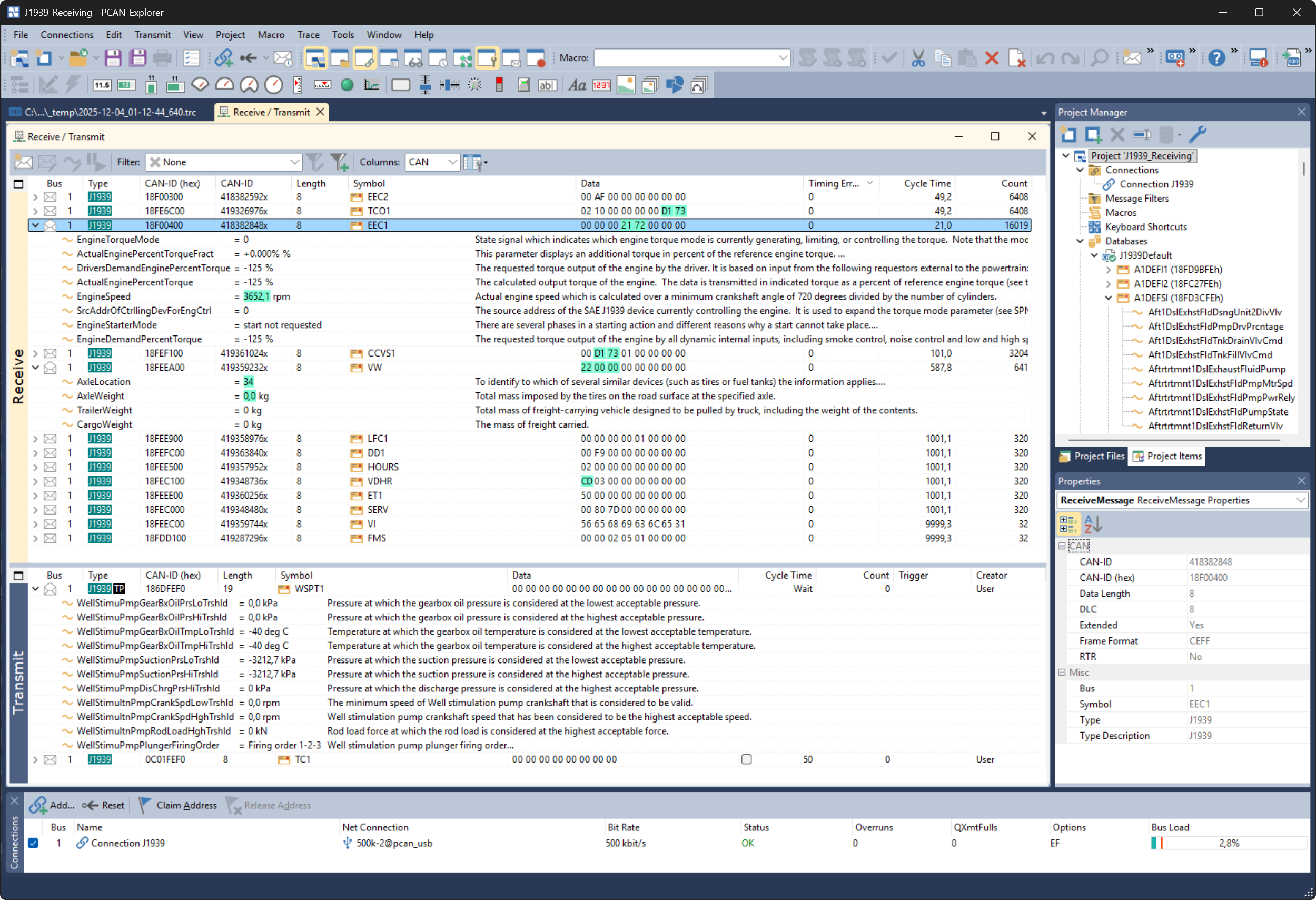
The SAE J1939 protocol defines CAN bus communication in utility vehicles for transmitting diagnostic and control data, using 29-bit CAN IDs. In addition to the CAN CC–based J1939, J1939 FD (based on CAN FD) enables higher data rates and better responsiveness. The PCAN-Explorer J1939 Add-in supports all standard parameter groups, provides easy parameter access, includes a regularly updated database (with an active maintenance contract), and allows custom Parameter Groups based on database PGs.
- Support of the SAE J1939 network protocol, including SAE J1939-21 based on CAN CC and SAE J1939-22 based on CAN FD (J1939 FD)
- SAE J1939 database with all the definitions and included parameters
- Definition of custom PGs
- Representation of J1939 data interpreted according to PG and SP definitions
- CAN messages can be sent in broadcast form or targeted to individual control units (ECUs)
- Support for address claiming
- Supports multi-packet messages
- Monitor window for displaying and requesting J1939 Diagnostic Trouble Codes (DTCs)
Plotter Add-in
Configurable Display of Signal Curves
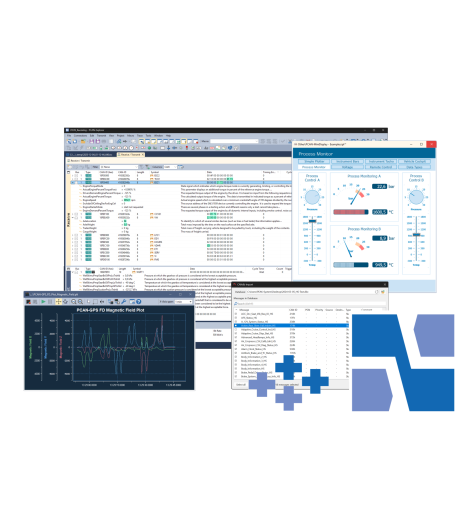
The Plotter Add-in records and graphically displays any number of signal courses. Signals can come from incoming/outgoing CAN messages, virtual variables, or script and macro calculation results. The free Windows Plot Viewer lets you view recordings without installing PCAN-Explorer
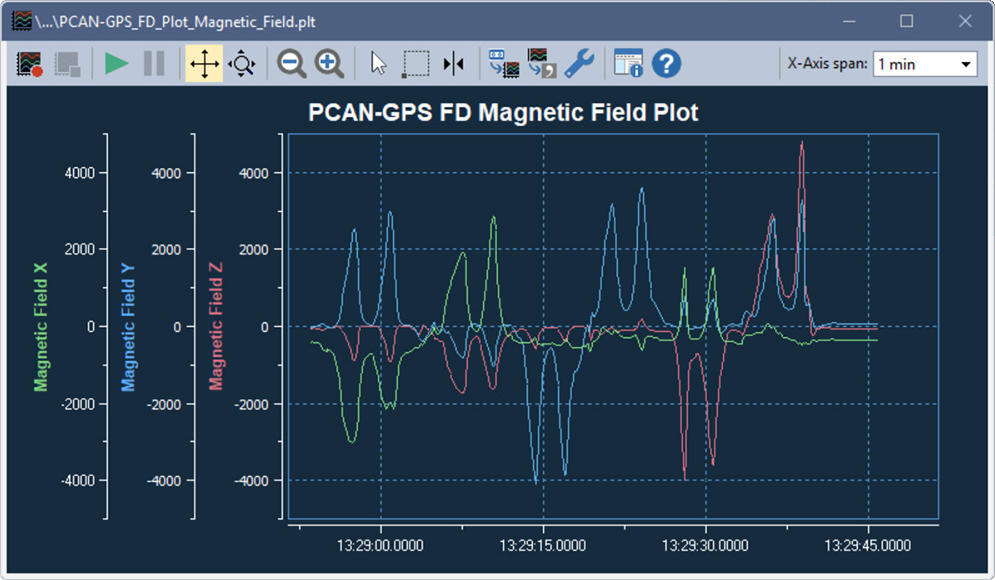
- Real-time display of signal courses
- Unlimited number of recording channels
- Unlimited number of Y-axes
- Decoupling of the configuration of Y-axis and channels to improve presentation and handling
- X-axis and Y-axes can be zoomed and scrolled freely, even during recording
- Facility for automatic adaptation of axes to plots
- Reversible Y-axes
- Logarithmic scales
- Cursor display for plot measurement
- Save the current view as an image
- Export the recording to a CSV file
- Import of data recordings from CAN trace files (.trc)
- Display of limiting values and value ranges
- Comprehensive formatting options for displaying curves, axes, and the plotter layout
Instrument Panel Add-in
The Instruments Panel Add-in displays digital and analog signals using various instruments. Integrated inputs and controllers can also generate CAN bus messages, enabling simple simulations, test benches, and complex monitoring applications.
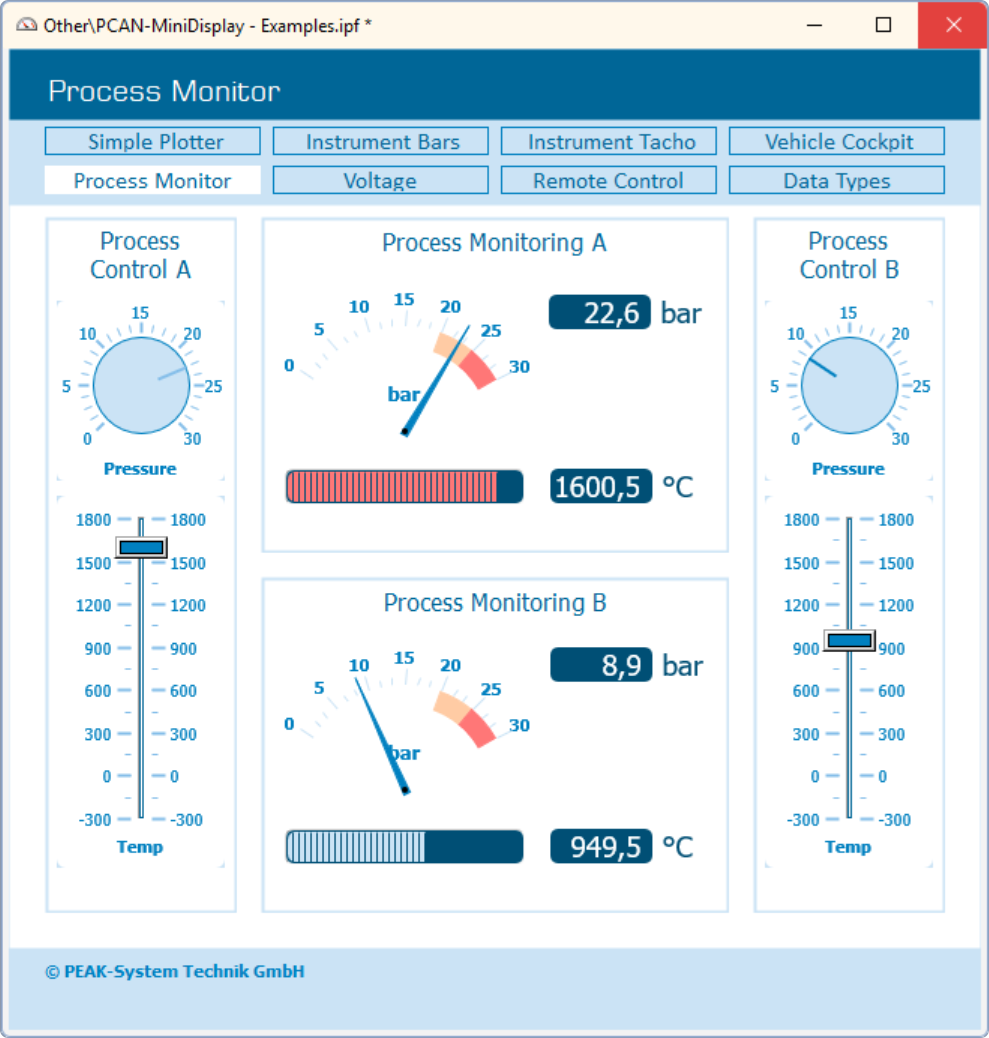
- Representation of analog and digital signals from received CAN messages using different display instruments
- In addition to potentiometers, switches, and sliding controllers, input fields can be used to generate CAN messages
- Shape element for displaying squares, rectangles, circles, and ellipses
- Signal-dependent display of image lists for creating own graphical instruments; SVG lists in addition since version 7
- Signal-dependent display of different panel layouts (Scenes) during runtime
- Selection and configuration of multiple elements at the same time
- Extensive configuration of the properties of one or more elements using the property window
- Free positioning of the instruments using drag & drop, or numerical inputs for spot-on positioning
- The Instruments Panel object model enables automation using COM and scripts
- Loading and storing of complete panel configurations